
Introduction
The Sony WH-1000XM4 headphones are a market leader in delivering outstanding sound quality and noise cancellation. For anyone looking to get the most out of their audio experience, knowing how to connect these headphones to a new device is vital. Whether you’re setting up the headphones for the first time or pairing them with a new gadget, this comprehensive guide walks you through every step to ensure a flawless connection.
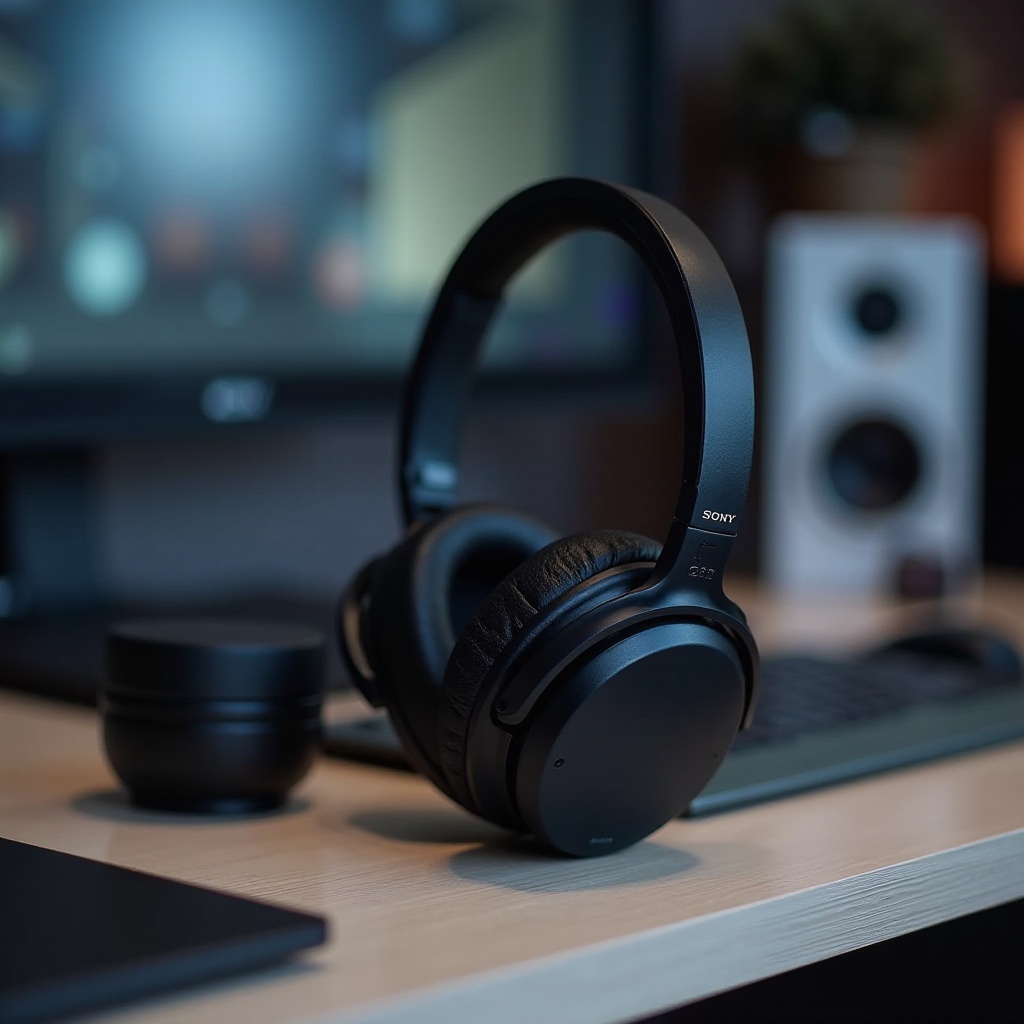
Understanding Sony WH-1000XM4 Features
Before you dive into connecting your Sony WH-1000XM4 headphones, it’s beneficial to understand their core features. These headphones come equipped with state-of-the-art Bluetooth technology and NFC capabilities to make pairing a breeze. Features such as ambient sound control and touch sensor controls are designed to give you an immersive audio experience. Knowing how these features work will help you make full use of what your headphones can offer.
Preparing for a New Connection
Preparation is key to ensuring a smooth and efficient pairing process. Make sure your headphones are fully charged; a low battery can interfere with the connection process. Here are the essential steps before connecting:
– Charging and Powering On: First, charge your headphones using the provided USB-C cable. Once fully charged, turn them on by pressing the power button until the indicator light comes on.
– Resetting the Headphones: If your headphones have previously been paired with another device, it’s a good idea to reset them. Press and hold the power and custom buttons simultaneously for about seven seconds until you hear a reset sound.
With your headphones fully ready, you are now set to proceed with making a new connection.
Step-by-Step Guide to Connecting Devices
Now that your headphones are prepared, it’s time to connect them to a new device. Follow these detailed instructions based on the device you’re using:
– Connecting to a Smartphone (iOS & Android):
1. Ensure Bluetooth is active on your smartphone.
2. Put your headphones into pairing mode by holding the power button until you hear ‘Bluetooth pairing.
3. In Bluetooth settings on your smartphone, find and select ‘WH-1000XM4.
4. Approve the pairing request, and wait for a confirmation sound to indicate a successful connection.
– Connecting to a Laptop or PC (Windows & macOS):
1. Activate Bluetooth on your computer.
2. Put your headphones into pairing mode.
3. For Windows: Navigate to Settings > Devices > Bluetooth & other devices, click ‘Add Bluetooth or other device,’ and choose ‘WH-1000XM4.
4. For macOS: Open System Preferences > Bluetooth, then select ‘WH-1000XM4’ from the menu.
– Connecting to Other Devices (TV, Smartwatch):
1. Ensure your device supports Bluetooth audio.
2. Put your headphones into pairing mode.
3. Go to the Bluetooth settings on your device and select ‘WH-1000XM4.
After these steps, your headphones should be successfully connected to your selected device, giving you the high-quality audio experience you desire.
Troubleshooting Common Connectivity Issues
Even with a clear guide, you may encounter occasional connectivity problems. Here’s how to resolve some common issues:
– Issues with Bluetooth Pairing: If your headphones fail to appear in the Bluetooth list, double-check that they are in pairing mode and within range. Restart both the headphones and the connecting device if necessary.
– Updating Firmware: Utilize the Sony Headphones Connect app to check for available firmware updates. Keeping your headphones up-to-date can resolve bugs and improve connection stability.
By following these troubleshooting tips, you can maintain a stable connection, ensuring your Sony WH-1000XM4 delivers the top-quality sound you expect.
Enhancing Your Sony WH-1000XM4 Experience
Once your devices are connected, you can explore further capabilities through the Sony Headphones Connect app, optimizing your listening experience.
– Using the Sony Headphones Connect App: Download and open the app to explore advanced settings. Customize your sound profile with equalizers, and adjust noise-canceling settings based on your environment.
– Tips for Optimal Connectivity: Ensure your headphones’ firmware is consistently updated and try to avoid areas with significant Bluetooth congestion to enjoy uninterrupted audio quality.
These additional features and settings allow you to tailor your Sony WH-1000XM4 experience to your personal preferences, ensuring superior sound.
Conclusion
By following this guide, you can achieve a seamless and successful connection of your Sony WH-1000XM4 headphones to new devices. Regularly updating the firmware and familiarizing yourself with the headphones’ features will help you enjoy an optimal audio experience every time. Trust your WH-1000XM4 to deliver nothing short of excellence in sound.
Frequently Asked Questions
How do I reset my Sony WH-1000XM4?
You can reset the headphones by pressing and holding the power and custom buttons simultaneously for about seven seconds until a reset sound is heard.
Can I connect my headphones to multiple devices simultaneously?
Yes, the Sony WH-1000XM4 supports multipoint connection, allowing you to connect to two devices at once, like a smartphone and a laptop.
What should I do if my headphones won’t connect?
Ensure Bluetooth is enabled on both devices and they’re in range. Reset the headphones and restart both devices if the problem persists.