
Introduction
The Nintendo Wii’s interactive design has captivated players for years. Key to this experience is the Wii controller, known for its motion-sensing technology. This guide walks you through turning it on, troubleshooting common issues, and even offers tips for enhanced gameplay.
Understanding the Wii Controller
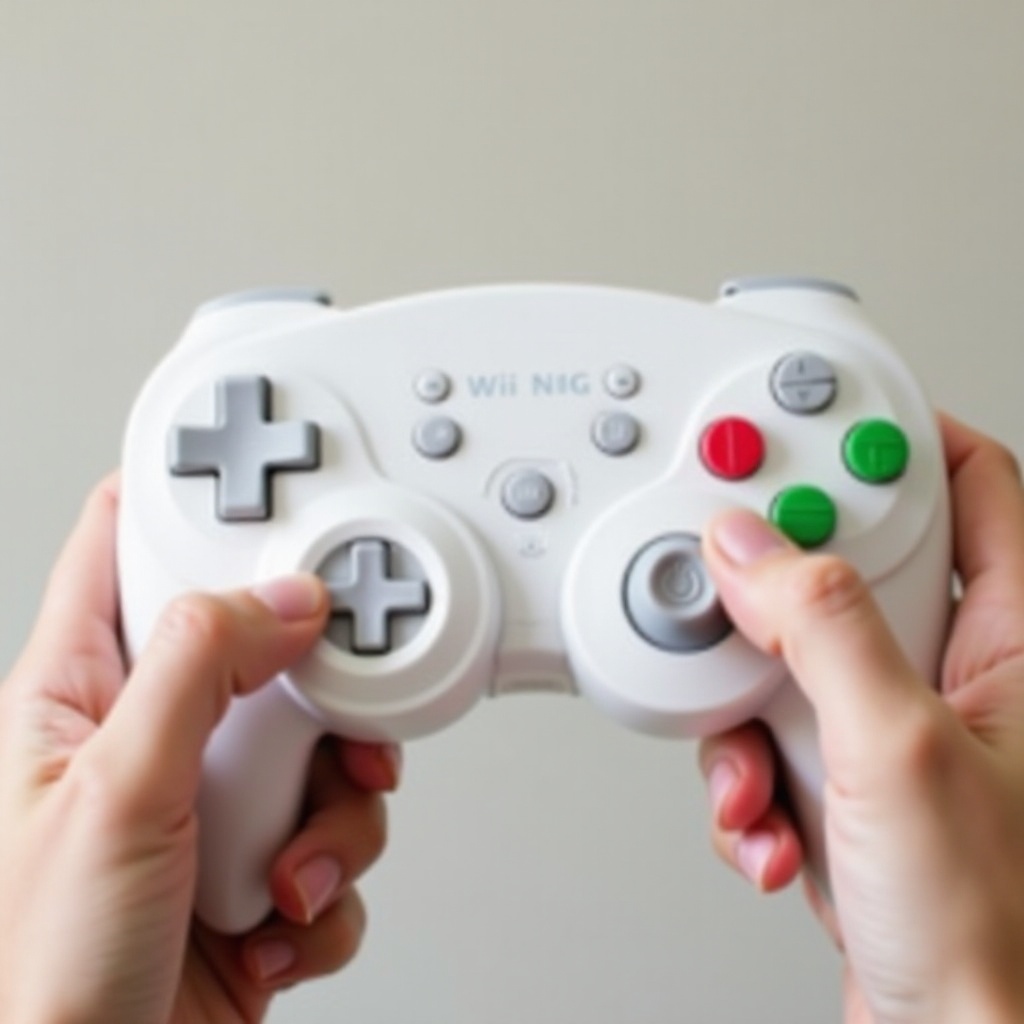
The Wii Remote, the cornerstone of Wii gaming, enables intuitive interactions via motion sensing. It’s available in various models, each offering unique features to suit different gaming experiences.
Different Types of Wii Controllers
The Wii Remote Plus adds improved motion tracking, while attachments like the Nunchuk provide additional control options, enhancing your gaming experience.
Key Features and Functions
With motion sensors, a speaker, and intuitive button layout, the Wii Remote ensures an engaging gameplay experience. Familiarity with these elements aids in troubleshooting and enhances interaction.
Preparing Your Wii Controller
Proper preparation extends the lifespan and functionality of your controller, setting the stage for a smooth gaming session.
Checking and Replacing Batteries
Ensure your controller is powered with fresh batteries for optimal performance:
1. Remove the battery cover from the back of the controller.
2. Insert two AA batteries, aligning them according to the plus and minus symbols.
3. Reattach the battery cover.
Maintaining Your Controller for Optimal Use
Regularly clean the controller with a soft, dry cloth to prevent debris from interfering with button functionality, ensuring a seamless gaming session.

Step-by-Step Guide to Turning On the Wii Controller
Once the controller is prepared, turning it on is the next step for a flawless gaming experience. Follow these simple instructions to power up and sync your controller.
Powering On the Controller
Simply press the power button just below the D-pad on the Wii Remote. The LED lights will flash briefly to signal the controller’s activation.
Synchronizing with the Wii Console
To sync:
1. Power on the Wii console with its power button or using a synced controller.
2. Open the console’s front door and press the red ‘SYNC’ button inside.
3. Press the ‘SYNC’ button in the battery compartment of the Wii Remote.
4. When the LED stops flashing and remains lit, the controller is synced.
Troubleshooting Common Power-Up Issues
Problems may arise when trying to turn on or sync the Wii controller. Address these common issues quickly to get back to gaming.
Unresponsive Controller Diagnostics
If your controller remains inactive:
1. Confirm the batteries are new and inserted correctly.
2. Reset by removing, waiting, and reinserting the batteries.
Resynchronization Procedures
Persistent sync issues? Try this:
1. Turn off the Wii console completely.
2. Unplug the console briefly, then reconnect it.
3. Repeat the synchronization process from scratch.
Advanced Tips for Wii Controller Usage
Elevate your gaming with advanced controller tips. Proper accessory use and configuration can significantly enhance the gaming experience.
Utilizing Controller Accessories
Connect accessories like the Nunchuk to the expansion port for games requiring additional controls for a dynamic gaming experience.
Enhancing Gameplay Experience
Game settings customization can improve response. Adjust sensitivity and calibration through the Wii’s settings menu for precise, tailored control.
Conclusion
The skill of turning on and managing your Wii controller significantly enhances interaction with your Wii console. Whether preparing the controller, troubleshooting, or optimizing usage, these steps ensure your gaming experience is uninterrupted and fun.
Frequently Asked Questions
Can I turn on the Wii without the controller?
Yes, the Wii console can be powered on using the power button on the console itself.
How do I know if my Wii controller is charging?
The Wii Remote uses disposable or rechargeable AA batteries; it does not indicate charging through the remote itself.
What should I do if my Wii controller won’t sync?
Try resynchronizing by turning off the console, unplugging briefly, then follow the sync steps again.